|
Windows
XP Dial-Up Configuration
-
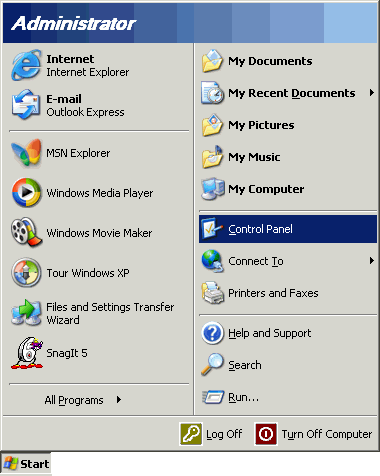
Click
on the Start menu, select Control Panel
Note:
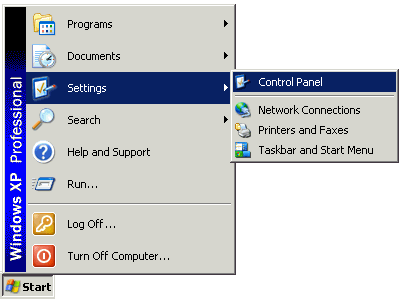
If you are running Windows XP in classic mode,
you will need to select the Start menu,
select Settings, then choose
Control Panel
-
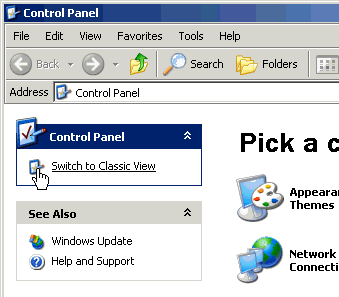
Click
the Switch to Classic View icon
-
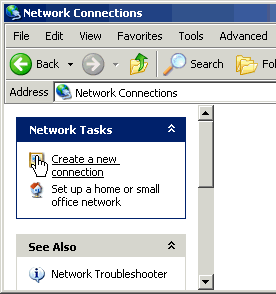
Double-click
the Network Connections icon

-
Click
the Create a new connection icon
-
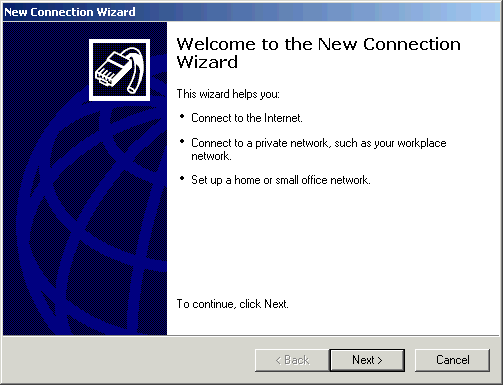
Click
the Next button.
-
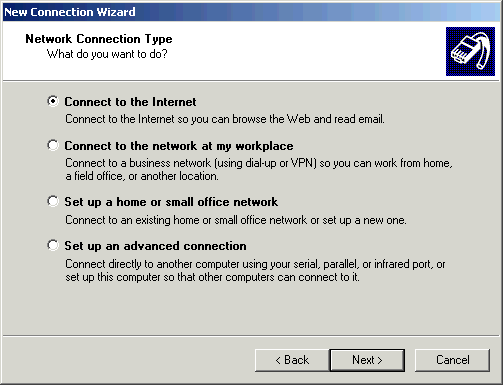
Select
Connect to the Internet. Click the Next
button.
-
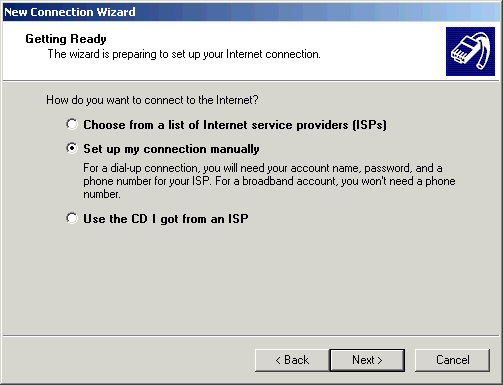
Select
Set up my connection manually. Click
the Next button
-
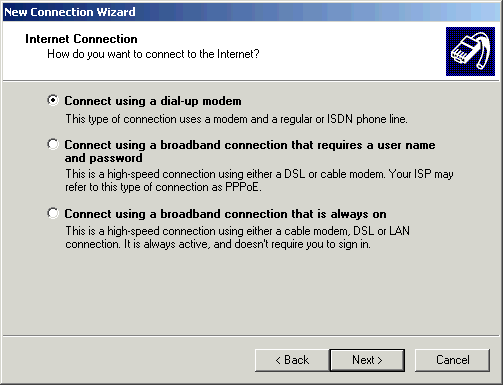
Select
Connect using a dial-up modem and Click
the Next button.
-
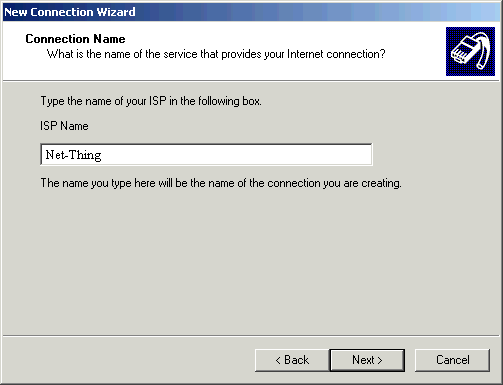
In
the ISP Name field, enter Net-Thing
to identify your connection. Click the Next
button.
-
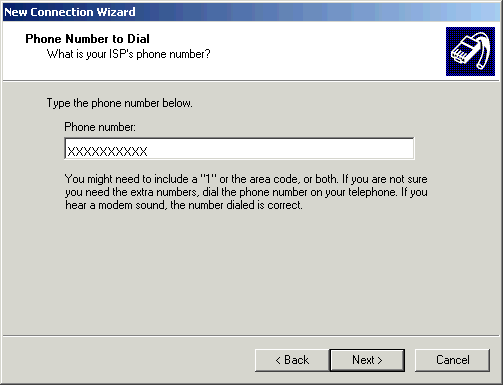
In
the Phone number: field, type the access
telephone number for your calling area
and click the Next button. Click
here for access numbers.
-
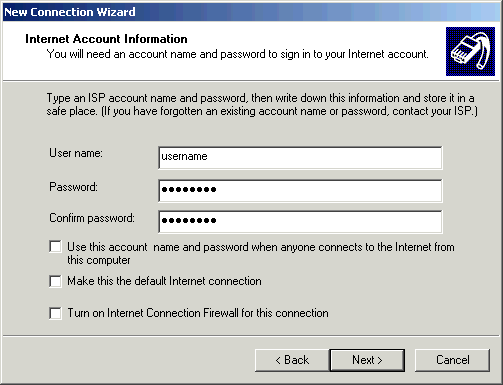
Refer
to the Welcome Letter that was faxed to
you and proceed with the following on the Internet
Account Information screen:
-
In
the User name: field, type your
Username.
-
In
the Password: field, type your Password.
-
In
the Confirm password: field, type your
Password.
-
Uncheck
the box next to Use this account name and
password when anyone connects to the Internet
from this computer.
-
Uncheck
the box next to Make this the default Internet
connection
-
Uncheck
the box next to Turn on Internet Connection
Firewall for this connection.
-
Click
the Next button.
-
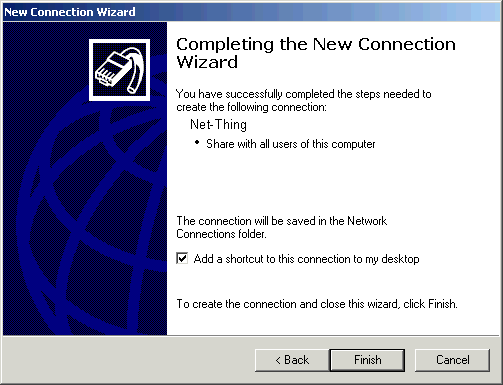
Check
the box next to Add a shortcut to this connection
to my desktop if you wish to have a shortcut
to the connection on your desktop. Click the Finish
button.
|