Outlook
Express Email (top)
1. Open
Outlook Express.
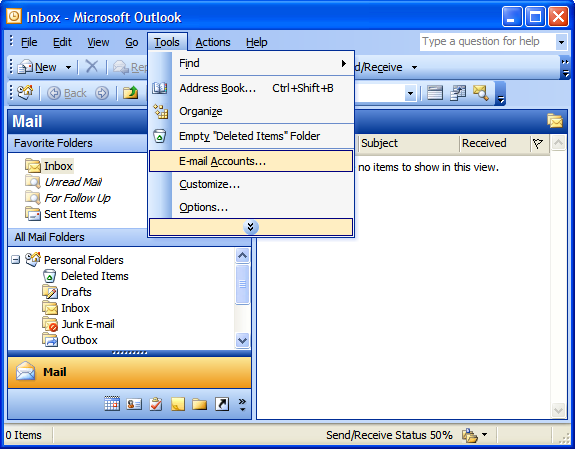
2. Click on Tools.
3. Click on Accounts.
4. Click
on Mail tab.
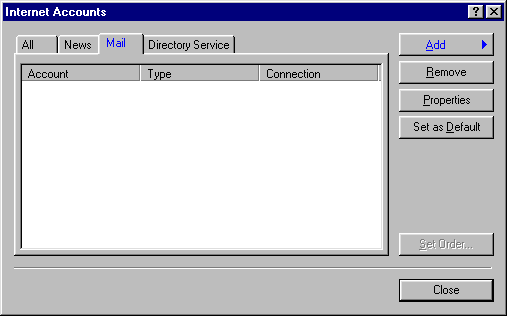
5. If
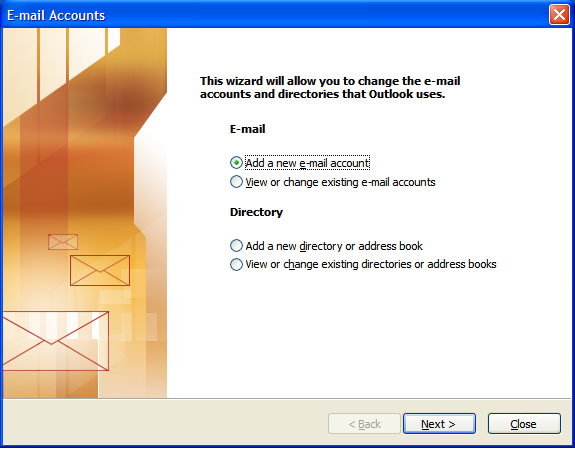
no account is listed, click on Add. Click
on Mail.
If account is listed, skip to step 13.
6.
Type in your name, click Next.
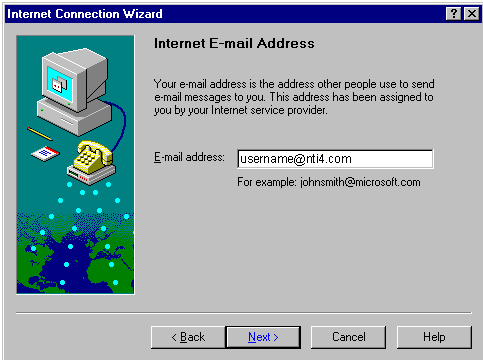
7.Type
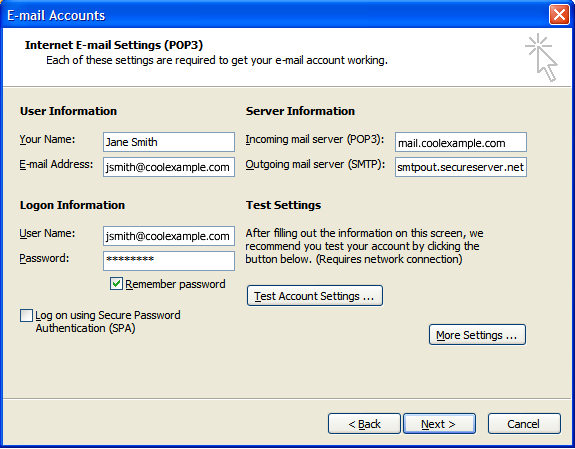
in your email address (example: john@nti4.com),
click Next.
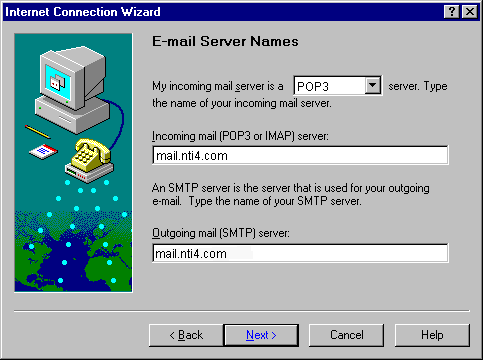
8. Incoming
mail server: mail.nti4.com
9. Outgoing mail server: mail.nti4.com
10. Click Next.
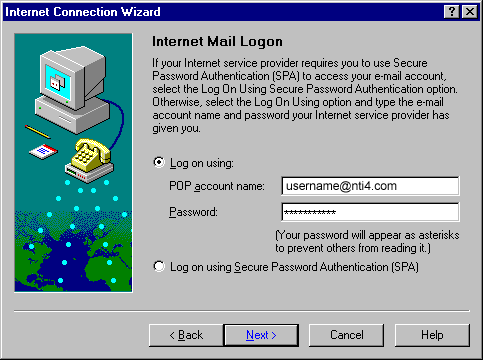
11. Type
in Account name (username@nti4.com) & password.
Click Next.
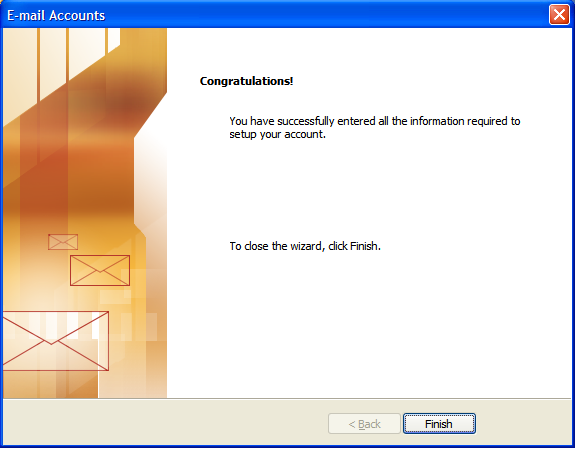
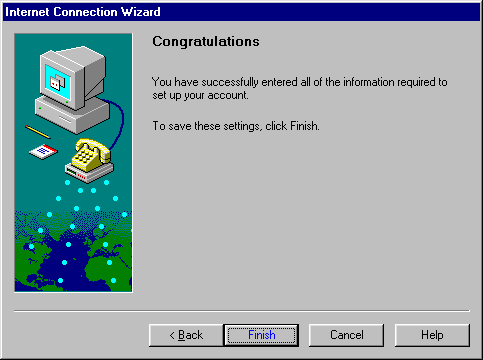
12. Click
Finish.
13.
Click one time on the account listed to highlight
it, click on Properties.
14. In the General folder, fill in your information.
Next click on the Servers tab.
15. In the Servers folder:
16. Incoming mail server (pop3):
mail.nti4.com
17. Outgoing mail server (smtp):
mail.nti4.com
18. Type in Account name (username@nti4.com)
19. Click on OK at the bottom.
20. You are now ready to use Outlook Express.
Please refer to the HELP option in Outlook Express
for answers to additional questions you may
have.
NETSCAPE
COMMUNICATOR 4.5 (top)
1.
Open Netscape Communicator 4.5
2. Click on EDIT
3. Click on PREFERENCES
4. In the CATEGORY screen, double click on MAIL and
NEWSGROUPS
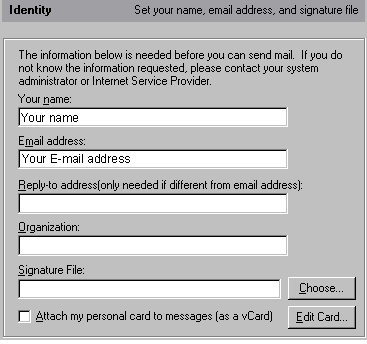
5. In the CATEGORY screen, click on IDENTITY
6.
On the right, fill in your name and email address
(example: john@nti4.com)
7. In the CATEGORY screen, click on MAIL SERVERS
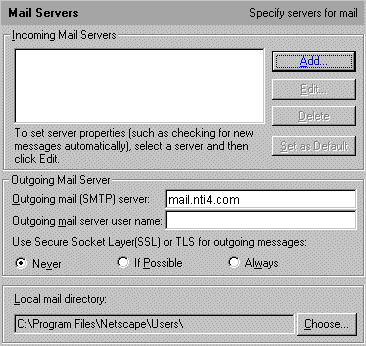
8.
INCOMING MAIL SERVER: mail.nti4.com (If no
mail server is listed, click on ADD.
9.
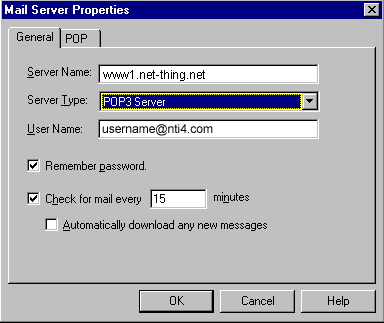
Enter the mail server: mail.nti4.com, server
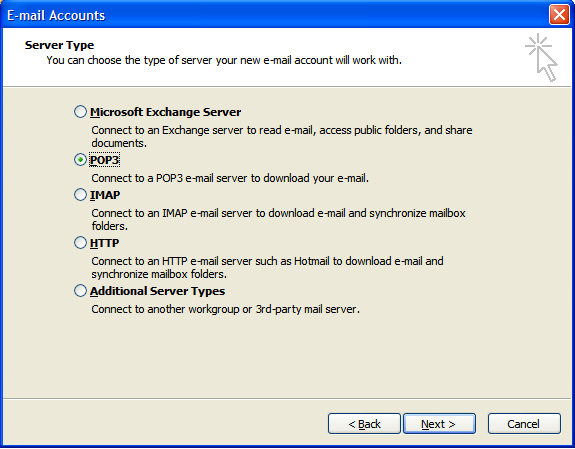
type: POP3, enter your user name. Next click
on the folder tab POP, uncheck leave messages
on server. Click OK.
12.
You are now ready to use Netscape Communicator 4.5
for sending and receiving email. Please
refer to the HELP option in Netscape for answers to
additional questions you may have.
EUDORA
LIGHT
(top)
Eudora
is pretty easy to understand. If you are using
Eudora Light, you can only have one email account
per instance of the software. Eudora Pro, the retail
version of Eudora (available at your local retailer),
supports several "Personalities" which
allow several account names to be added to the software.
It is easy to operate as well. This will show
you how to add your own account to Eudora. In
both the Light and Pro versions, this is how it would
be done.
Start
up Eudora. Go to the Tools menu and select Options.
Then just follow the easy screen shots to configure
your email account!
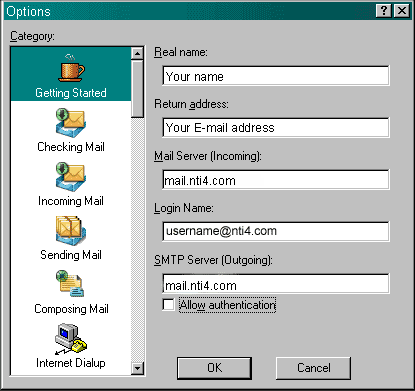
Once
you configure this, all you have to change then
are the Hosts settings. Check all others to make
sure that you don’t need to change/add anything
else. This
last screen is what will make sure your mail
sends out to your domain. Please
note this change, for the SMTP type in: mail.nti4.com
(top)
|